How do I create an invoice?
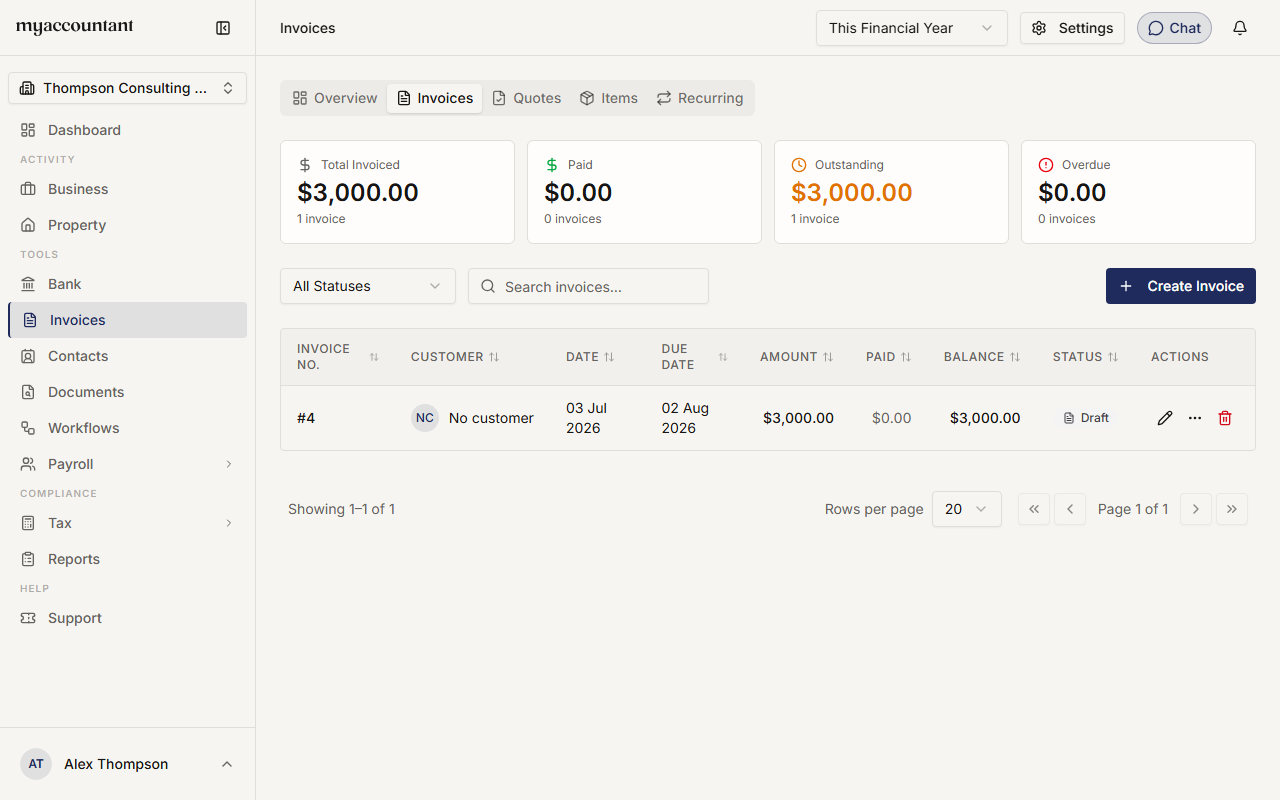
Step 1. Go to Invoicing in the sidebar, open the Invoices tab, and click Create Invoice. The New Invoice form opens with the next invoice number assigned for you.
Step 2. Choose the Customer by typing to search. If they're not in your list yet, you can add them straight from the dropdown.
Step 3. Set the Invoice Date and the Due Date. For the due date you can pick a payment term (for example Net 30 or Due on receipt) or choose Custom and set your own date.
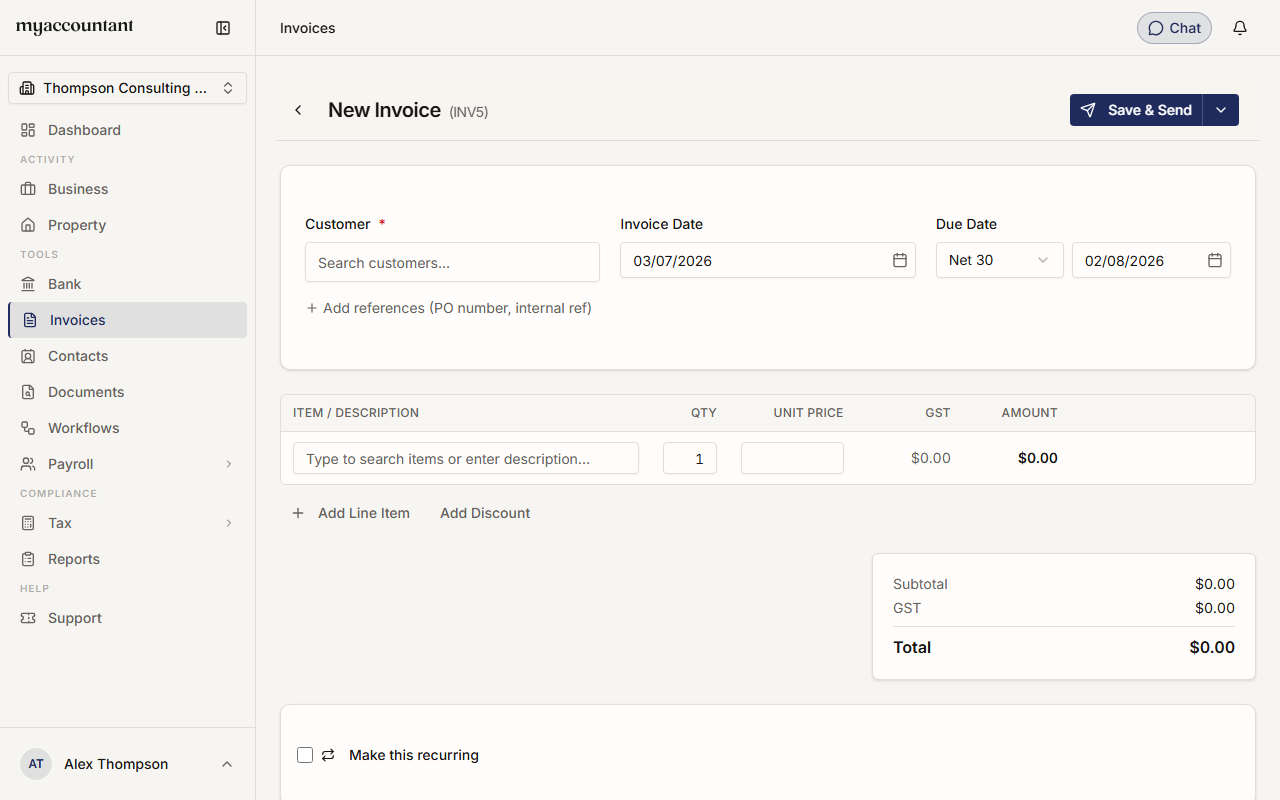
Step 4. Optionally click Add references to record a Your Reference (such as a PO number) and an Our Reference.
Step 5. Add your line items. In each row, type to search your saved items or just enter a description, then set the Qty and Unit Price — the GST and Amount are worked out automatically. Click Add Line Item for more rows, or Add Discount to add a discount.
Step 6. Check the Subtotal, GST and Total at the bottom right.
Step 7. Optionally add Notes (the customer sees these) and your Terms & Conditions.
Step 8. Save the invoice:
- Save & Send — saves it and emails it to the customer.
- Or use the dropdown next to it for Save as Draft or Save & New.
New invoices start as Draft until they're sent.
Tip: to repeat an invoice automatically, tick Make this recurring while creating it — see How do I set up recurring invoices?.
Related guides
Did this answer your question?
Thanks for your feedback.