How do I add a contact?
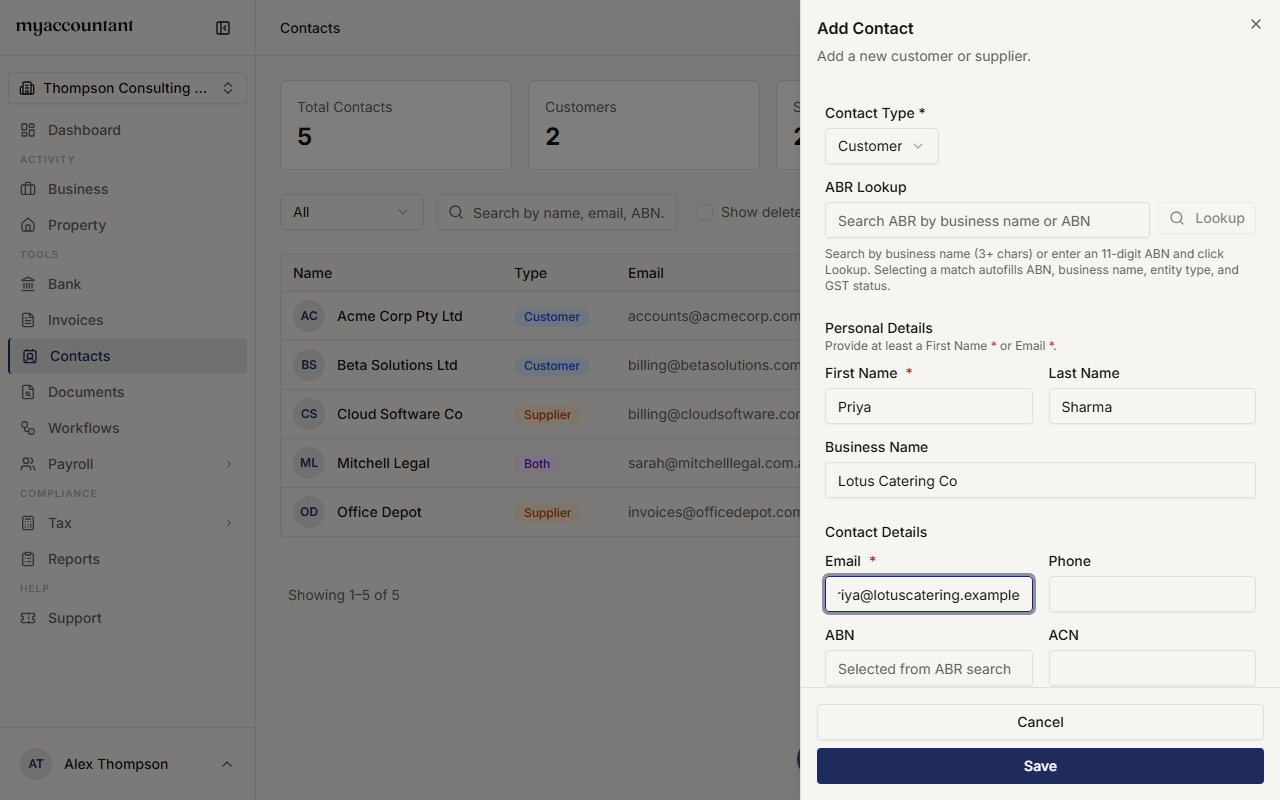
Step 1. Go to Contacts in the sidebar and click Add Contact (top right). The Add Contact panel slides open.
Step 2. Choose the Contact Type — Customer, Supplier or Both.
Step 3. (Optional) Use ABR Lookup to find an Australian business: search by business name, or enter an 11-digit ABN and click Lookup. Picking a match fills in the ABN, Business Name, entity type and GST status, and marks the ABN as Verified.
Step 4. Enter the contact's details. You need to provide at least a First Name or an Email. Add the Last Name, Business Name, Phone, ABN, ACN and any Notes as needed.
Step 5. (Optional) Set Payment Terms (days) — the default number of days from invoice date to due date when you bill this contact.
Step 6. (Optional, mainly for suppliers) Add Bank Details (Account Name, BSB, Account Number, PayID) so you can pay them by bank transfer.
Step 7. Add a Billing Address. Tick Same as billing address if the shipping address is the same, or untick it to enter a separate one.
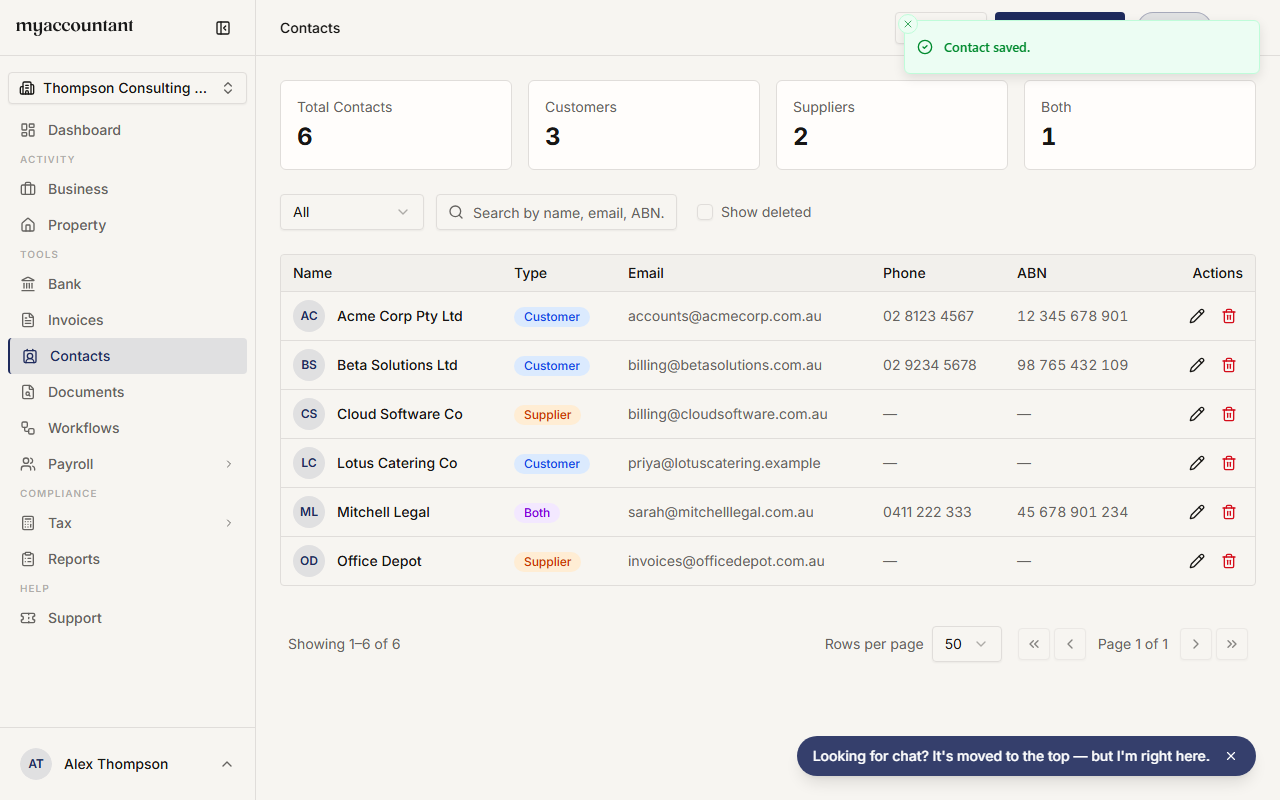
Step 8. Click Save. You'll see a "Contact saved." confirmation and the new contact appears in the list.
Importing several contacts at once
To bring in a list of contacts from a spreadsheet, click Import on the Contacts page and upload a CSV file.
Related guides
Did this answer your question?
Thanks for your feedback.